Report Name: Collect – GeoNotes (example)

File Name: EarthSoft.Reports.Library.149680.dll
Dependencies: Licensed Collect Module
Software: EQuIS Collect, EQuIS Enterprise
Source: EQuIS Collect install
Language: English
Output Type: Report Grid1
Description: The GeoNotes report returns inspection data stored in DT_NOTE. The report includes associated geography data (coordinates), allowing this report to be used with the Collect Map. It also includes files linked to the notes.
Installation Instructions: This report requires a licensed EQuIS Collect module and the Collect Schema applied to the database. For use, this report should be published to the database. Download the EQuIS Collect xcopy zip from the community center, unblock the *.zip file, and extract the EarthSoft.Reports.Library.149680.dll file to the EQuIS Professional installation folder. For default installations, this directory is C:\Program Files\EarthSoft\EQuIS. The report will be available for selection once it has been published.
Overview:
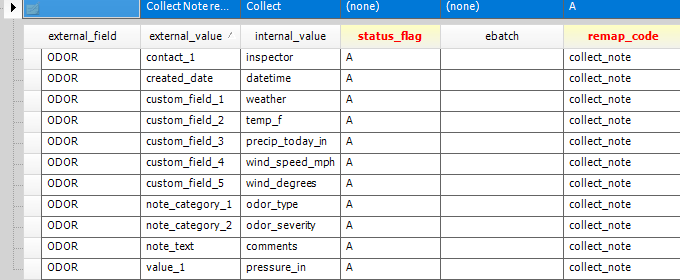
The caption of the output columns can be modified using RT_REMAP table where REMAP_CODE ="collect_note" and EXTERNAL_FIELD= [DT_NOTE.NOTE_TYPE]. An example is shown in the image below. Using the Collect_Inspection format, a user can collect a variety of inspection data into DT_NOTE.
Tables: DT_NOTE, DT_GEOGRAPHY, DT_FILE
Report Parameters |
||||||||||||
|---|---|---|---|---|---|---|---|---|---|---|---|---|
|
Report Output |
||
|---|---|---|
AUTHOR CONTACT_1 CONTACT_2 CONTACT_3 CREATED_DATE CUSTOM_FIELD_1 CUSTOM_FIELD_2 CUSTOM_FIELD_3 CUSTOM_FIELD_4 CUSTOM_FIELD_5 DUE_DATE FACILITY_CODE |
FACILITY_ID FILE_DATE FILE_REMARK NOTE_CATEGORY_1 NOTE_CATEGORY_2 NOTE_CATEGORY_3 NOTE_DATE NOTE_TEXT NOTE_TITLE NOTE_TYPE PHOTO |
PLACE_CODE PLACE_TYPE RECURRENCE STARTED_DATE VALUE_1 VALUE_2 VALUE_3 VALUE_4 VALUE_5 X_COORD Y_COORD |
1The Report Grid provides additional export options to Excel, Google Earth, Outlook, Shapefile, PDF, Text, Access, XML, or a printer.