•End-User License Agreement (EULA)
This is a step-by-step walk through of the EQuIS Professional Setup Wizard. Steps on changing or repairing an installation of EQuIS are in the help article Repair or Change Installation.
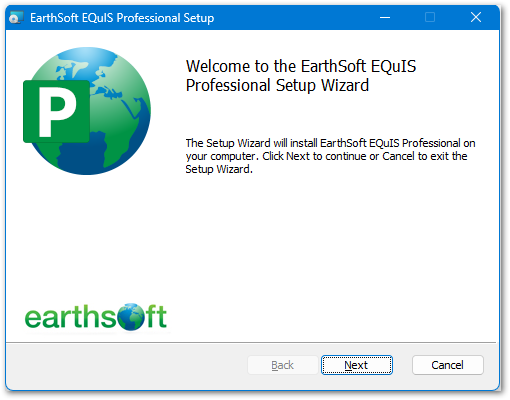
Follow the instructions on the EarthSoft EQuIS Professional Setup Wizard screen:
End-User License Agreement (EULA)
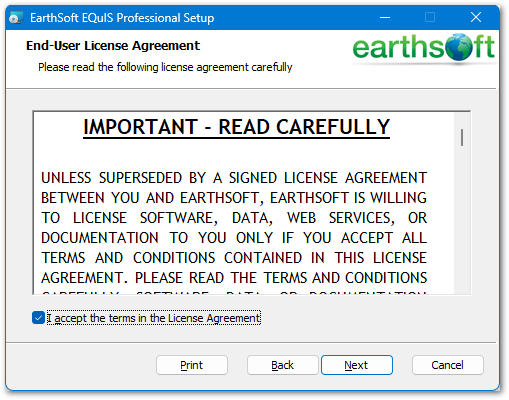
Scroll through to read the full agreement. After reading the agreement, select the check box "I accept the terms in the License Agreement" to agree.
Select Next after reading and agreeing to the End-User License Agreement.
Setup Customization
Choose where the application is installed and which, if any, of the optional features are installed in this section of the Setup Wizard.
Install Location
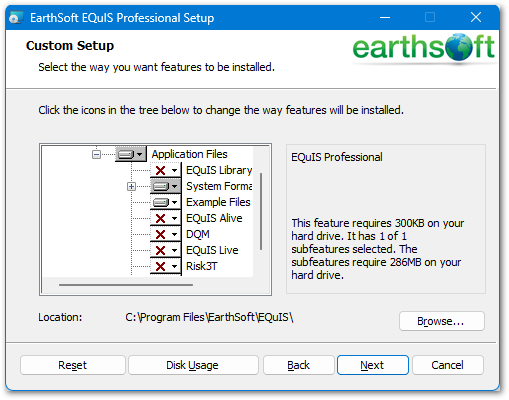
The install location is the location where all of the local components of the EQuIS application will be installed. By default, this location is set to C:\Program Files\EarthSoft\EQuIS\ or, for per-user installation, %localappdata%\Programs\EarthSoft\EQuIS\. Click Browse to change this location.
Note: Administrative user permissions on the computer in use are required to add or edit files in the Program Files directory. |
Optional Features
EQuIS Professional 7 contains the following optional features as well as the ability to install the EQuIS Alive, DQM, and Risk3T modules.
•System Format Files (installed by default, except for DMR and EuroEQEDD)
•Tutorial Files (installed by default)
Click on a feature to highlight it. Information about the feature is shown in the right pane.
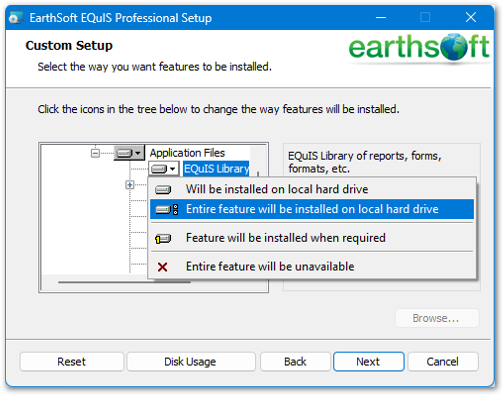
Expand the plus (+) sign to the left of a feature to show sub-components. Not all features have sub-components. The icon in the control box adjacent to the feature name indicates whether the feature is selected to be installed.
|
Entire feature will be installed. |
|
Part of the feature will be installed (expand view to see which parts). |
|
Entire feature will be unavailable. |


By default, the EQuIS Library, DMR System Format and EuroEDD System Format features will be set to unavailable. Change whether or not a feature is installed by making a selection in the feature's control box. Once the Optional Feature installation is set, continue with the Setup Wizard.
Note: These Optional Features can be added or removed after installation via the Setup Wizard. The Setup Wizard can be opened by clicking on the installer (.msi or .exe) or by selecting EQuIS Professional from the Programs and Features section of the Windows Control Panel and selecting Change>Modify. |
Begin Installation
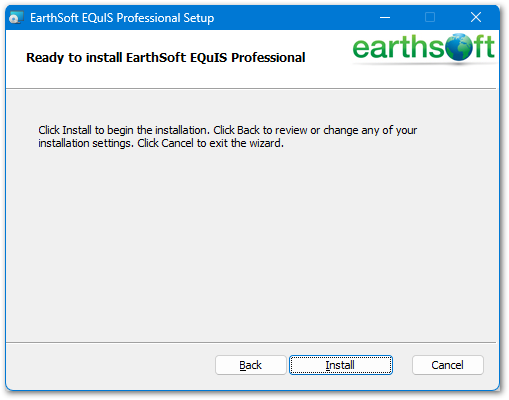
Begin the installation if you are satisfied with the selections on the previous screens, by following the instructions in the image below.