Enterprise users connecting to Professional may be authenticated with OpenID.
Sign in with OpenID
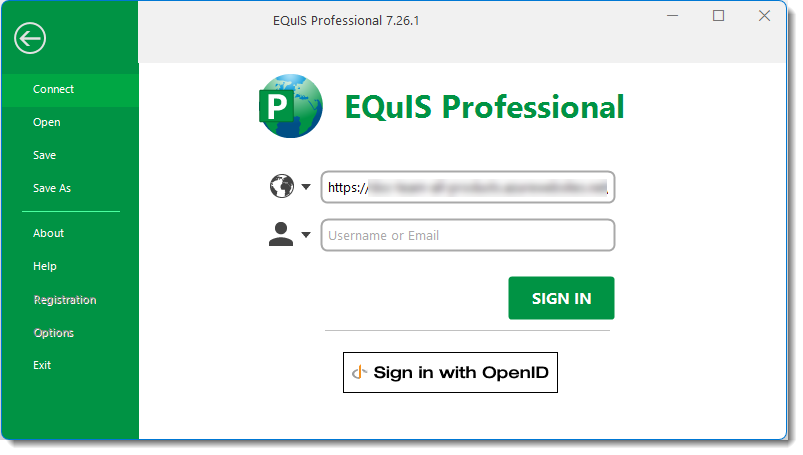
When configured, a "Sign in with OpenID" button is visible on the login screen after entering the Server Name (Server Type = Enterprise).
Click Sign in with OpenID.
A new login prompt opens to authenticate with OpenID.
Add to the Windows Registry
Be aware that changing the Windows Registry could cause problems. It is highly recommended to back up the registry before making any changes.
Note: EarthSoft assumes no liabilities for problems introduced when making changes to the registry. |
To back up the registry in Windows:
1.Select Start , type regedit.exe in the search box, and then press Enter. If prompted for an administrator password or for confirmation, type the password or provide confirmation.
2.In the Registry Editor, locate and click the registry key or subkey to back up.
3.Select File > Export.
4.In the Export Registry File dialog box, select the location to save the backup copy, and then type a name for the backup file in the File name field.
5.Select Save.
For more information, see Microsoft's How to back up and restore the registry in Windows article.
Windows Registry
Note: To use PingID with the "Sign in with OpenID" option, users will need to add to the Windows Registry at HKEY_CURRENT_USER\SOFTWARE\Microsoft\Internet Explorer\Main\FeatureControl\FEATURE_BROWSER_EMULATION
Add a new DWord: "EQuIS.exe" hex value: "00002af9". |
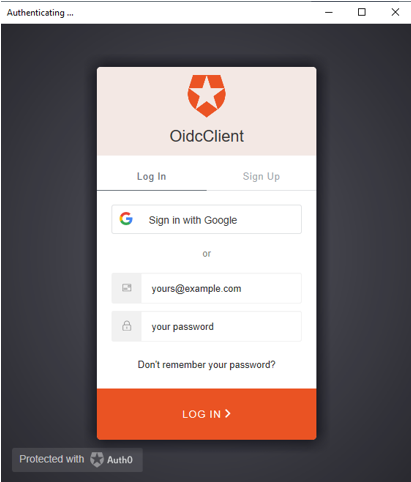
Enter the Email and Password for the OpenID account
The user is directed back to Professional as an authenticated user.
Users will be signed out of OpenID after disconnecting in Professional.