The Table Form field type allows users to enter data directly into a tabular grid in Collect Mobile. Users capturing data can add new rows (i.e., records) to the table form field grid.
The Table Form allows users to enter data from another form or subform in the form section they are currently working in.
Example: The form section Samples contains a Table Form field that points to the subform Field Parameter. Users can then continue to work in the Samples form instead of navigating to the subform to fill out the Field Parameter records. This is the scenario configured in the General Water Sampling template.
Additional Resources
•An overview of the Collect Mobile user interface and functionality for entering data into a Table Form field type is available at Table Form Field Data Entry.
•Watch the recording of the Table Form Field Type in Collect Office Hour for additional information.
Configuring the Table Form Field in the Template Designer
After adding a Table Form field to a template in the Template Designer, several properties are available to be configured. The following properties are specific to the Table Form field type; additional information on the remaining properties and attributes can be found at Collect Forms and Fields.
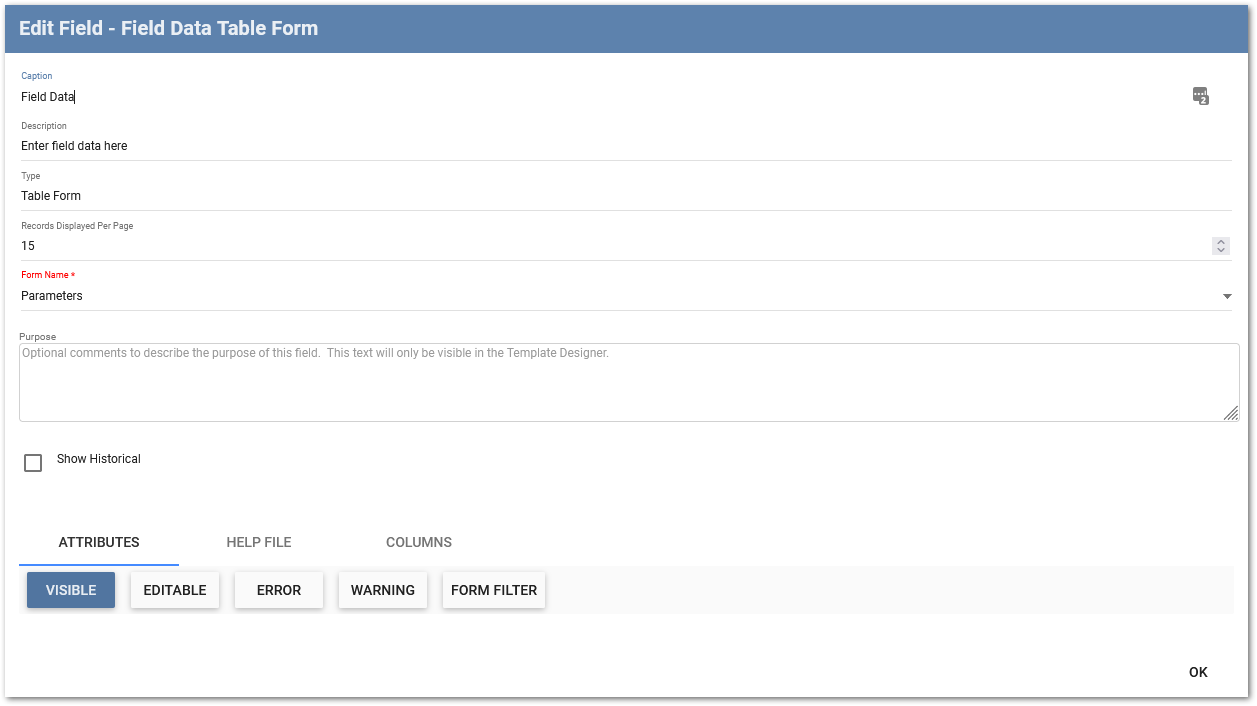
Records Displayed Per Page – Defines the number of records that will appear on one page in the Table Form field in Collect Mobile. The default number of records displayed per page is 10, with a minimum value of 1 and a maximum value of 50.
Form Name – The Form Name is a required property. The Form Name property dictates which form section the table will interact with. The drop-down list includes all parent form sections and any child form sections that relate to the form in which the Table Form field resides. When pointing a Table Form field in a parent form down to a child form, adding new rows in the Table Form field will automatically assign them as child records to the parent.
It is recommended to use the Form Filter attribute to limit the view of data to only the child records of the parent. Additional information on parent-child relationships can be found in Parent-Child Relationships in Collect Templates.
Example: In a form section called Samples that contains a Table Form field pointed to the subform Field Parameter. To show FieldParameter records only, use a formula like the following in the Form Filter attribute: EQ([#id],[FieldParameter.#parent_#id]).
Columns Tab
The Columns tab is used to define which fields will be the column headers in Table Form field. Columns are required and cannot be empty.
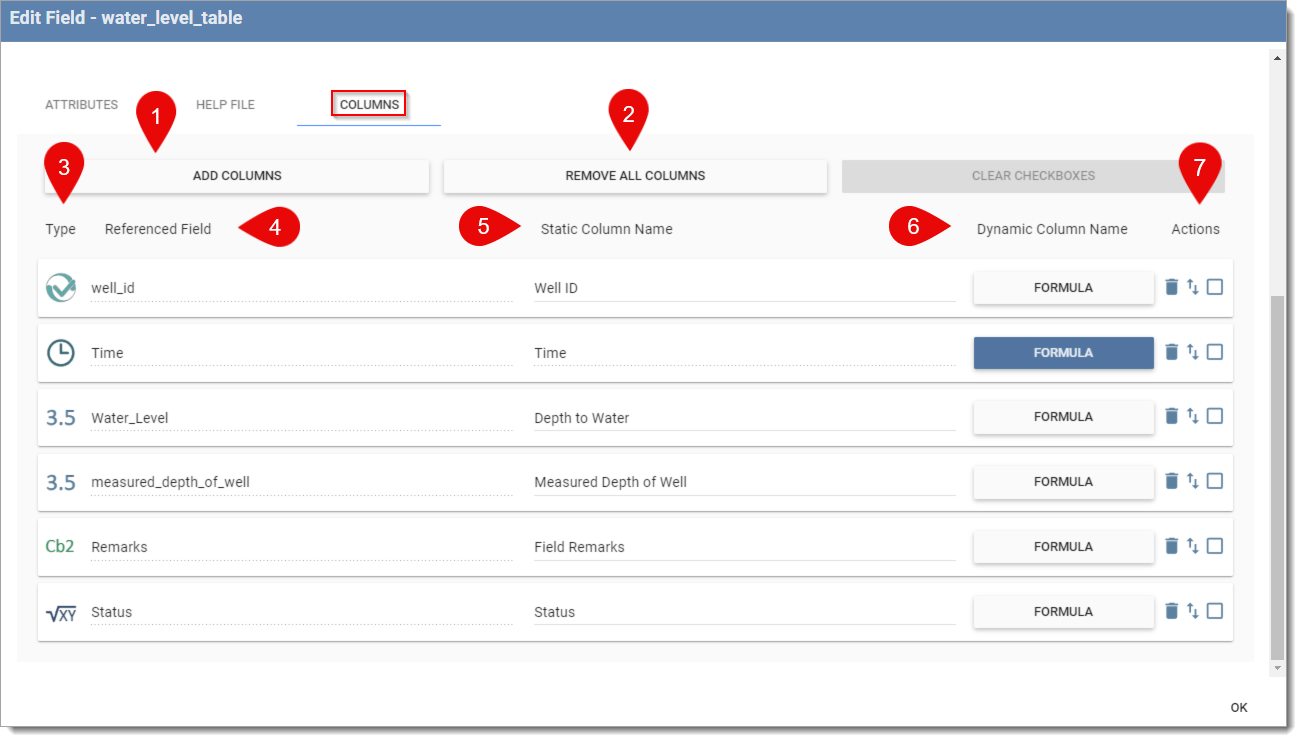
1.ADD COLUMNS – displays the fields (of compatible field types) that reside in the associated form section selected in the Form Name property. Individual fields may be selected or all compatible fields can be selected using the Select All checkbox. After a field is selected it will display in the grid under the COLUMNS tab.
If all compatible fields in the associated form section are selected, the ADD COLUMNS option will become inactive.
Notes: •The attributes applied to the field are carried through to the column in the Table Form field. For example, if the field has a Visible attribute that evaluates to FALSE, it will not appear in the Table Form field. However, there are two differences to make note of in how an attribute appears differently in the Table Form compared to the field in the form section: oWhen triggered, the Warning attribute is displayed as a yellow triangle with an exclamation mark icon Col-mobile-Warning_icon_Note in the Collect Mobile Table Form field and the cell is highlighted with a yellow outline. oWhen triggered, both the Error and Required attributes are displayed as a red octagon with an exclamation mark icon Col-mobile-Error_icon_Note in the Collect Mobile Table Form field and the cell is highlighted with a red outline. •The following fields are compatible within the Table Form field type: oString oLongString ▪The LongString field type will display as one line of text unless line breaks are manually entered, by clicking "Enter" oDate oTime oDateTime oInteger oDecimal oSelector oDynamic Selector oBoolean ▪Boolean field type will display as a check box oFormula |
2.REMOVE ALL COLUMNS – Allows for all columns to be removed at once.
3.Type – The field type of the field being added as a column in the Table Form field.
4.Reference Field – The name of the field being added as a column in the Table Form field.
5.Static Column Name – column names displayed in the Table Form field in Collect Mobile can be static, where the static column name is defined in the Static Column Name field. Static column names can be edited by selecting the text in the Static Column Name field.
6.Dynamic Column Name – column names displayed in the Table Form field in Collect Mobile can be dynamic, where the column name is determined by a Formula here in the Dynamic Column Name field. Click the Formula button, which opens the Formula Builder, to build a formula to dynamically adjust the column name. The Formula button will be blue if a formula is configured for the Table Form field.
Note: If configured, the Dynamic Column name will take precedence over the Static Column Name. |
7.Actions – additional actions that can be performed:
a.Reorder – reorders form columns using up/down arrows using either a Move Selected Fields dialog or by dragging and dropping fields one at a time.
b.Delete – removes selected form columns from the Table Form field.
c.Clear Check boxes – deselects all checked form columns.