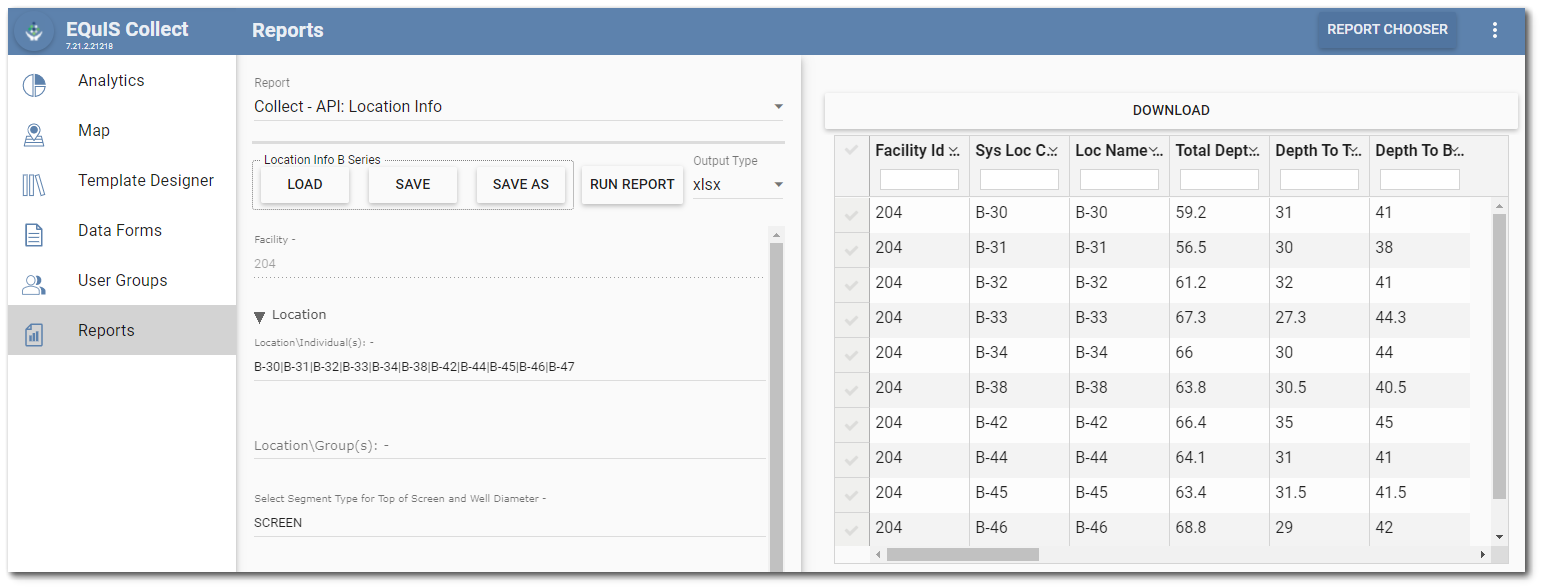
The Reports page provides another option to run reports, download reports, and create EQuIS User Reports.
Choose Reports
The Reports page enables data filtering based on the Base Report selected.
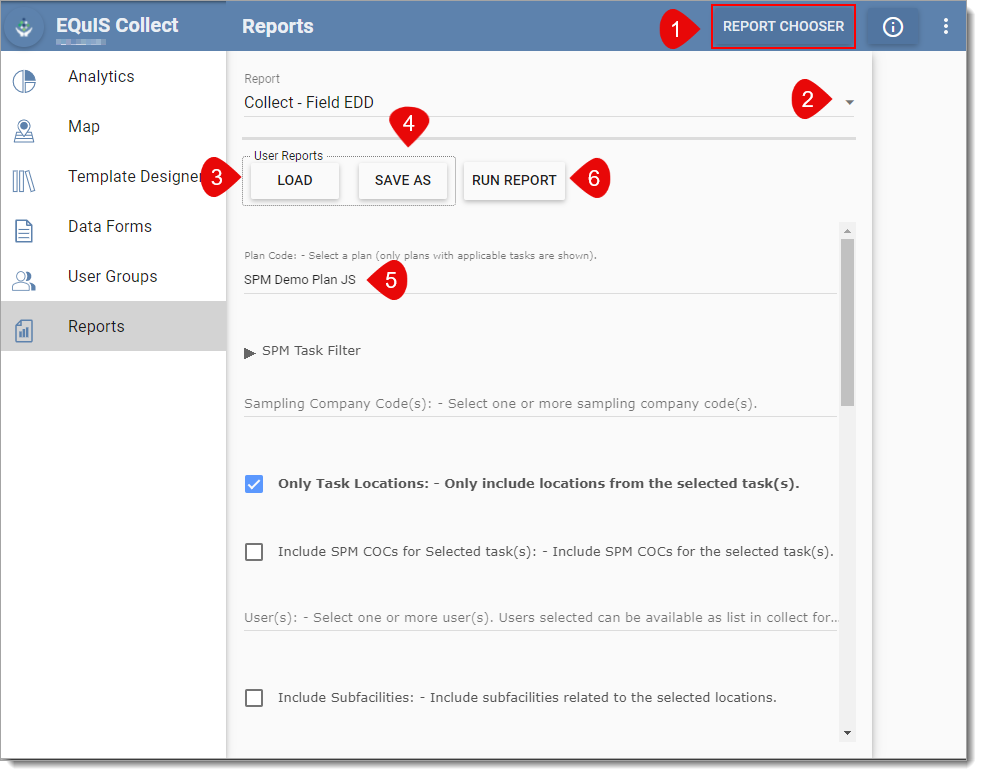
1.The REPORT CHOOSER button opens the Report Chooser window where users can manage the base reports that can be selected in the Report drop down menu.
Note: The EQuIS Library Reports chapter provides detailed descriptions of available standard reports. The Collect Reports are in the "Standard with Collect Module" sub-chapter. |
|---|
2.Use the Report drop-down menu to select a specific report to load or run. In the image above, the Collect – Field EDD report is selected.
3.Click the Load button to display all available user reports that were created by various users for the selected base report.
a.Click on a user report to show parameter details. Click the OK button to load the user report.
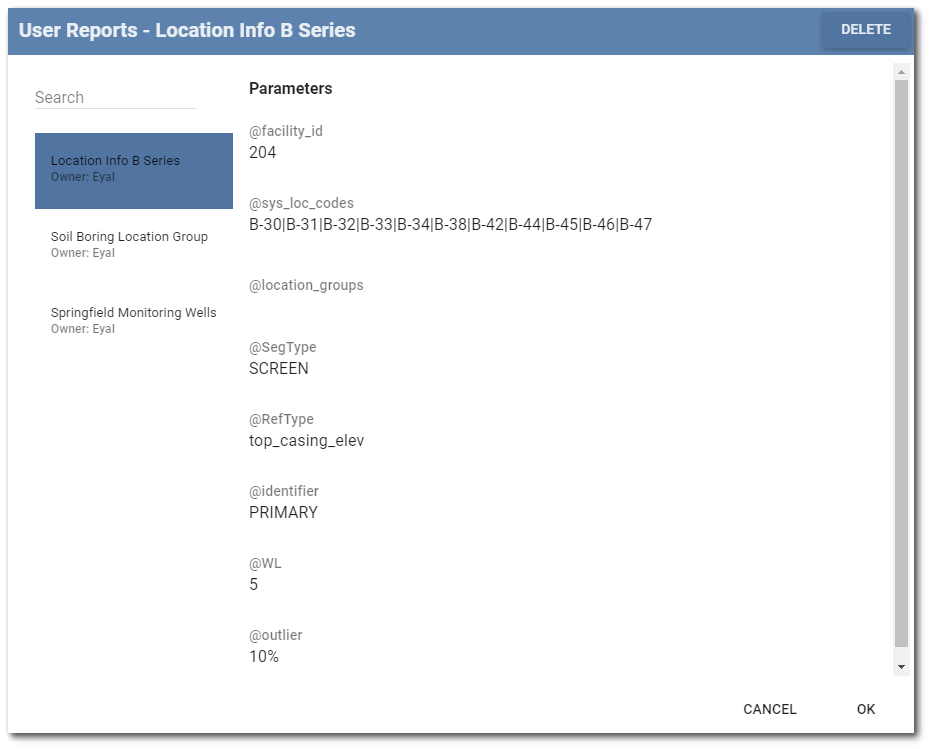
b.The loaded report name and parameter values will be displayed on the Parameters tab.
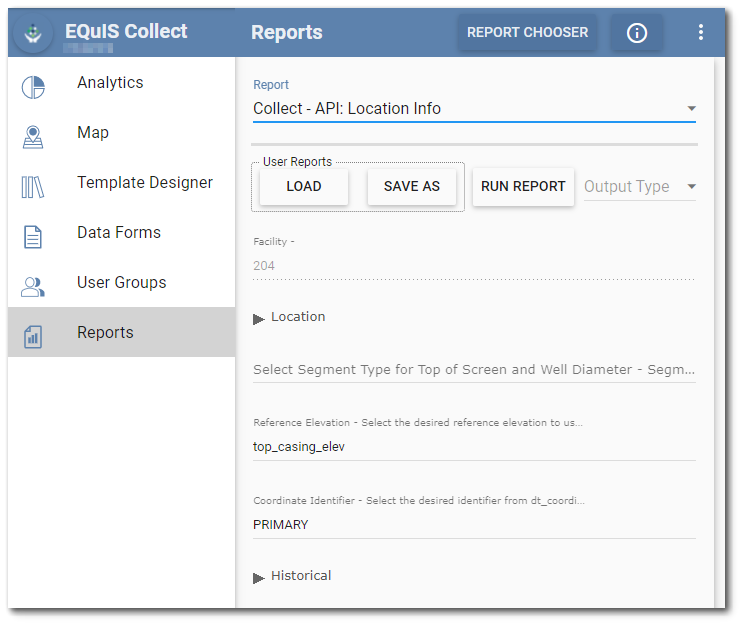
4.A new user report can be generated by selecting the desired parameter values followed by the Save As button. The user report will be available for viewing and download once it has run.
5.The available parameters for the report are displayed beneath the User Reports buttons (Load, and Save As) and Run Report button.
6.The Run Report button is used to run the selected user report or parameter selections.
a.Select the desired export option in the Output Type drop-down to download the report to the selected file type, if available. File export options vary by base report and may include the following filetypes:
i.Text (.txt), comma-delimited (.cvs)
ii.Microsoft Excel (.xlsx)
iii.GoogleEarth (.kmz)
iv.GIS shapefile (.shp)
v.Portable Document Format (.pdf)
vi.JavaScript Object Notation (.json)
Note: If no export option is selected, the file will be available as a HyperText Markup (.htm) file. |
b.Select the DOWNLOAD button to download the report output.